FlyBeeper FANET Vario
External FANET with Bluetooth and variometer in one device with a solar panel. Send and receive FANET packets without an internet connection. Use it as a sensitive variometer and source of barometric altitude for smartphone apps.
No public firmware build yet.
Changelog
Changelog
Version: 0.32.0 | Date: 08.10.2026 | Download
- Genuine device check: the device can now prove to the FlyBeeper app that it is a genuine FlyBeeper. Every device has its own key, which stays the same through firmware updates and settings resets. The app uses it so that only real devices can vote for sound presets.
- Sound, vario and flight behaviour are unchanged.
Version: 0.31.0 | Date: 08.10.2026 | Download
- Faster vario: the vario now reacts to the start of a climb or a sink about twice as fast — around 0.3 s instead of 0.6 s — while staying just as quiet when you are standing still.
- True m/s at any altitude: until now the reading was exact only around 800 m — at sea level it over-read a climb by 8 %, at 3000 m it under-read by 20 %. The vario is now correct at any altitude, so the sound thresholds trigger at exactly the speed set in the configurator.
- Quieter barometer: less noise in the pressure reading.
- Slightly higher consumption: about +0.2 mA (estimate).
Version: 0.30.0 | Date: 06.10.2026 | Download
- Tone hold thresholds are back: the climb and sink “off” thresholds work again. Once a tone has started it now keeps sounding down to its own off threshold — the climb tone down to the climb-off value, the sink tone up to the sink-off value — instead of stopping the moment the reading crosses the switch-on threshold. Each hold keeps only its own tone, so a climb tone fading into sink territory goes quiet rather than turning into the sink tone. The default values give no hold, so the device sounds exactly as before until you change these settings.
- Early exit can be switched off: the climb hysteresis (the early silence when a climb is weakening) is turned off by setting it to 0. Previously 0 and negative values were silently replaced with 0.25 m/s. With a non-zero value the early exit still takes priority over the climb hold.
- Simulator sounds like the real thing: a vario value sent from the configurator’s simulator now goes through the same averaging as the barometer, so the device sounds just like the sound emulator in the configurator.
- Louder in the weak band: the piezo was noticeably quieter between 1700 and 2100 Hz. The buzzer now uses a tuned duty cycle there instead of the fixed 50 %, which adds 7–11 dB right where it was missing. You will hear it in the vario tone around 3.6–4.5 m/s, in the last note of the power-on melody and in the middle ticks while holding the button; all other tones are unchanged.
- ADS-L reception from other equipment: the device now hears ADS-L transmitters that do not add the compensating sync byte, such as SoftRF. Previously they saw us, but we did not see them.
- ADS-L timing: a position older than 500 ms is no longer sent — the age check now accounts for the time it takes to switch the radio into transmit. When the app asks for alternating receive channels, the channel is now picked at random rather than in strict turn, so two transmitters on the same rhythm can no longer stay hidden on the other channel.
Version: 0.28.3 | Date: 30.08.2026 | Download
- Over-the-air update fixed: versions 0.28.1 and 0.28.2 could not be installed on this device over the air — the file was transferred, the new firmware started, and the device came back on the old version. Two separate causes, both fixed: memory was full to the brim after the ADS-L module was enabled and the firmware could not write its own confirmation (3 KB freed); and the hardware watchdog, which keeps running through the software reset that starts an update, fired inside the bootloader’s image check right after the swap finished. The watchdog window is now 6 seconds. On firmware older than this version the configurator installs the update in permanent mode to get past that watchdog.
- Quiet on the ground now follows the ground: the reference pressure is re-taken every 10 seconds while you stand, so barometer drift no longer looks like a take-off, and a device switched on down in the valley and carried up to launch treats the launch as the ground after a minute. A take-off is a climb of 2 metres from that reference; a landing is a minute of stillness within half a metre.
- FANET v2 command channel: a dedicated Bluetooth service for the app — transmit with a tag and confirmation, region profile (EU868), power, counters, and RSSI/SNR of received frames. The v1 channel is unchanged.
- ADS-L transmission: scheduled transmission in the Direct slot by the device’s UTC clock, with listen-before-talk and channel alternation. Our frames are now seen by third-party receivers — the sync word was missing its leading byte and other equipment ignored us.
- Radio ownership: receive commands no longer reconfigure the chip on top of an active ADS-L transmission (subscribing, reconnecting or sleeping during one).
- Correct FANET coordinates: the decoder now follows the specification exactly.
- No self switch-off after an update: the double-reset window now only counts a press of the button. The reboot that follows an over-the-air update is a software one, and it could previously be mistaken for a button press — a device could go to sleep by itself right after updating.
Version: 0.26.0 | Date: 19.08.2026 | Download
- Power-on confirmation now actually works: A short press could still switch the device on. The hold check ran only after the radio stack was up — by then a brief touch was long over and the device booted as if the button had never been checked. The device now recognises a button wake-up from the hardware reset reason, so a touch shorter than the hold is refused and it goes straight back to sleep.
- Ticks during the power-on hold are audible again: The buzzer got its volume setting only after the countdown had finished, so the amplifier stayed silent while you were holding the button.
- Lower idle current: The internal DC/DC regulator of the nRF52 is now enabled. Measured on a live device: 298 → 236 µA, 21 % less. The choke has been on the board from the start; the firmware had simply never switched the regulator on.
- Barometer polling follows the volume: The sensor stops being polled when the sound is off and nobody is subscribed. Polling the barometer is the single most expensive thing the device does, and it no longer runs for nothing.
- Battery reading: Refreshed every 5 minutes instead of every 10 while connected.
- Auto power-off floor: The inactivity timeout can no longer be set below 5 minutes.
Version: 0.24.0 | Date: 27.07.2026 | Download
- Power-on confirmation: The device powers on only after the button is held for 3 seconds — an accidental touch in a pocket no longer wakes it. The hold is accompanied by ticks with a rising rate, so you hear how much longer to hold. Release earlier and the device goes straight back to sleep.
- Audible feedback while holding: Ticks during the button hold and during boot. The LED sits right next to the button and gets covered by your finger, so the countdown is duplicated by sound.
- Long-press cancel: Release the button after the ticks have started and the volume no longer switches. Previously you got a volume change while reaching to switch the device off and changing your mind.
- Smooth melodies: The power-on and power-off melodies no longer break up. They used to be interrupted by flash writes (settings save, image confirm), which stall the CPU on nRF52.
- Reliable power-off: The buzzer is stopped synchronously right before deep sleep. An unfinished melody can no longer keep the device awake with the PWM running — the state where it looked switched off but kept draining the battery.
- Auto power-off by inactivity: Configurable timeout — the device switches itself off when it is neither connected nor touched. 0 disables it.
- Long-press modes: What a long press does is decided by the “Bluetooth never sleep” setting: full power-off, or “go silent but keep advertising” so the device is revived by simply reconnecting.
- Faster connection: The Bluetooth advertising interval in the economical mode is down from 3.5 s to 1.28 s, and after power-on, a disconnect or a button press the device advertises at 100–150 ms for 30 seconds. Phones find it noticeably faster.
- Radio and Bluetooth stability: Outgoing notifications moved to a dedicated queue. A sleeping phone on a degraded link could previously stall the whole Bluetooth stack — the device looked frozen with the LED stuck on until reconnect.
- LED indication fix: The receive LED no longer stays lit after a disconnect.
- Update protection: The build no longer publishes images that are unsuitable for over-the-air updates.
Manual
FlyBeeper FANET Vario
Manual
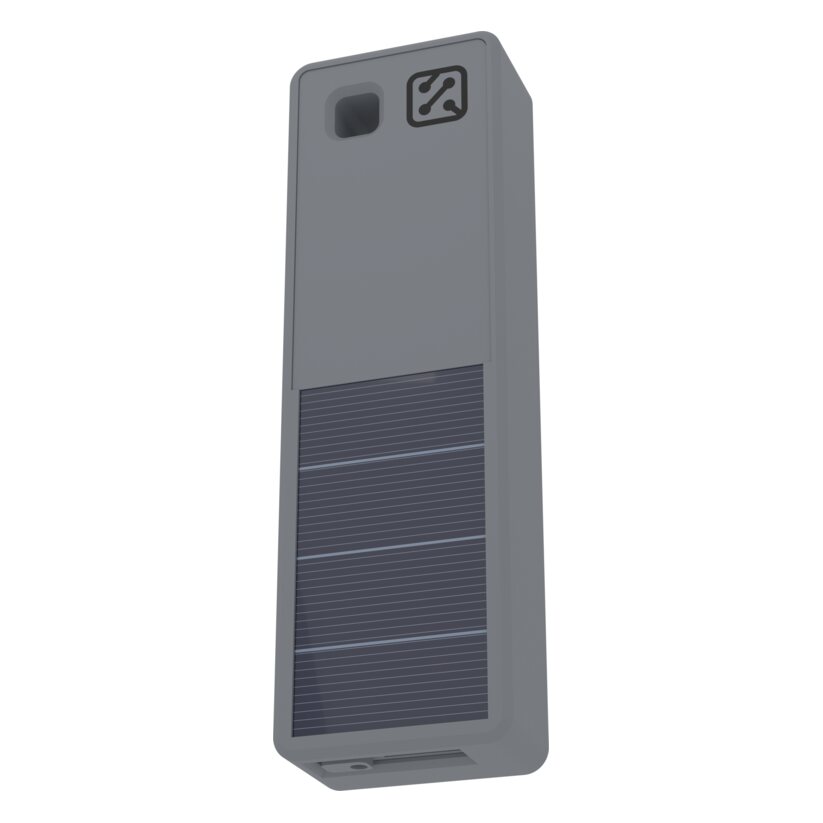
The device combines two functions: a FANET radio transceiver and a sensitive variometer with sound. It sends and receives FANET packets without an internet connection, sounds climb and sink through its own piezo buzzer, and at the same time serves as a source of barometric altitude for flight apps on your phone. It runs on a built-in battery topped up by a solar panel.
What is in the box
The device, a safety cord and a quick-start card. A USB Type-C cable and a mount are not included: any cable will do, and everyone picks the mounting to suit their own harness.
The cord goes through the hole in the upper part of the enclosure and ties to your harness or cockpit — the device is carried on the outside, and a leash costs less than a new unit.
Serial number
The serial number of your unit is the FBFV.XXXX on the label, where XXXX is unique to your device. The same number is what the device broadcasts in the Bluetooth device list: the name you pick in the app is its serial number. You do not have to hunt for the label — just switch the device on and see what it calls itself on the air.
Quote this number whenever you contact support or claim the warranty.
Controls
The button, the LED and the USB Type-C connector sit on the bottom end of the device. Next to the LED there is a small hole: sound comes out of it and air reaches the barometer through it. There is a single button — every mode is chosen by how long you hold it.
Power on — press the button and hold it for 3 seconds. The whole hold is accompanied by ticks with a rising rate, so you hear how much longer to hold. When the countdown is over the power-on melody plays. Release earlier and the device silently goes back to sleep — an accidental touch in a pocket or a backpack will not wake it.
Power off — with the device on, press and hold the same 3 seconds. Ticks first, then a melody. What exactly happens is decided by the Bluetooth never sleep setting:
- setting off (default) — full power-off. Radio, sound and Bluetooth advertising stop, the device goes into deep sleep drawing microamps. This is also the mode for transport and long-term storage. To come back, hold the button for 3 seconds;
- setting on — “go silent” mode. The device drops the Bluetooth link and mutes the variometer and the sound, but keeps advertising. It stays visible and revives on its own as soon as you connect to it, or on the next long press.
Volume — a short press cycles the level: 0 (silent) → 1 → 2 → 3 → 0. The new level is confirmed by that many beeps; at level 0 the device stays quiet. If there is no Bluetooth connection at that moment, the same press also switches advertising to its fastest rate for 30 seconds, so your phone finds the device sooner.
Cancelling a long press — if you started holding the button, heard the ticks and changed your mind, just release it. The volume will not switch: the ticks have already sounded, so the press no longer counts as short.
Auto power-off — when the Power off timeout is set, the device switches itself off after that much inactivity. A button press and a Bluetooth connection reset the countdown, and it is paused for as long as a connection is active. A value of 0 (default) disables auto power-off.
The device plays a short melody on every Bluetooth connect and disconnect — this is normal and does not mean it rebooted.
Placement
The device is designed to be mounted vertically on the outside — on a harness shoulder strap, on a cockpit, on a backpack. The FANET antenna lives in the upper part of the enclosure, under a separate lid above the solar panel; the through-hole for a safety line is in the same block.
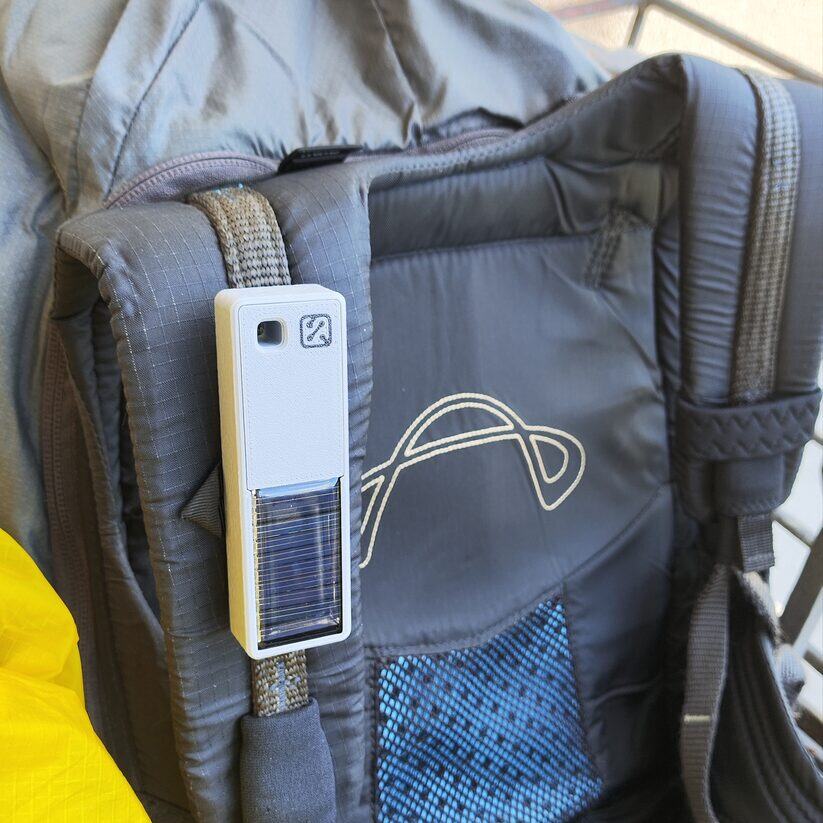
It is the upper half of the enclosure that matters for range: do not press it against metal parts, batteries or the pilot’s body, and leave a little free space around it. Cockpit fabric is transparent to radio and does not get in the way, so the device does not have to stick out of the cockpit.
Turn the solar panel outwards, towards the light. Its exact orientation does not matter — there is plenty of margin in the panel.
Do not tape over or plug the hole on the bottom end next to the LED: it is both the buzzer port and the air path to the barometer. A blocked hole muffles the sound and spoils the variometer readings.
Charging
The device charges two ways.
From the USB Type-C connector — with an ordinary charger or a computer port. Chargers that only speak Power Delivery will not work.
From the solar panel — continuous trickle charging in daylight. In a normal flying scenario the panel offsets the consumption and noticeably extends the time between mains charges.
Battery, storage and transport
Inside there is a lithium-polymer cell, with the usual requirements that come with this chemistry.
Charge the device while somebody is around, and do not leave it charging overnight. Keep it below 60 °C: a closed car in the sun and a dashboard behind a windscreen are exactly that case. Do not charge it in freezing weather — lithium must not be charged below 0 °C, let the device warm up first. Do not open the enclosure, and do not puncture or crush the cell: the USB Type-C connector is the only service point.
If the enclosure swells, the device gets hot while charging or you smell something, stop the charge, move it away from anything flammable and write to us.
For storage and transport the device has to be switched off completely — a long press with the Bluetooth never sleep setting off; in that mode it draws microamps. For air travel this is also what the rules require: devices with a lithium battery travel in the cabin and switched off, never in checked baggage. The cell is about 900 mAh (roughly 3.4 Wh), far below any threshold, so no airline approval is needed.
Long storage is easier on a half-charged cell. Top the device up every few months, or simply let it sit in daylight — a deep discharge shortens the battery’s life. There is no need to run it flat “for calibration”.
Connecting and disconnecting over Bluetooth
The device has to be switched on. Pairing through the operating system is not required — the app establishes the connection itself. Start a supported program or this configurator, scan for devices and pick the one named FBFV.XXXX, where XXXX is the last four characters of your unit’s identifier. Keep the devices close to each other. If you see several of them, pick the one with the strongest signal.
The device accepts one connection at a time. While another app holds it, further attempts look like a long wait — close the other app or wait for it to disconnect.
If the device takes too long to show up, press its button once: advertising switches to the fastest rate for 30 seconds and then gradually falls back to the economical one. Connecting works in any mode; the economical one just takes a bit longer.
Disconnection happens automatically when you leave the app. The device keeps working on its own: it sounds the variometer and receives FANET.
Firmware update
Firmware is updated straight from this configurator, over the same Bluetooth connection that is already open. Open the firmware list, connect to the device and press “Update”. The device reboots on its own; while the update runs, leave it alone and keep it near the phone.
The bootloader verifies the image signature, and a new firmware is installed in “test” mode — it confirms itself only once it has started successfully. A failed update is rolled back to the previous version automatically.
Web Bluetooth is not available in Safari on iOS — there, use the Bluefy browser or the nRF Connect Device Manager app with the app_update.<version>.bin file downloaded beforehand.
List of Flight Programs with Direct Support
- LK8000 v.7.4.19+ (full support FANET + pressure)
- xcTrack v.0.9.11.10+ (static pressure, receive FANET)
- SeeYou Navigator v.3.0.6+ (static pressure, receive FANET)
- Flyskyhy v.8.2+ (static pressure)
- FlyMe (static pressure)
- TheFlightVario XC 2.38+ (static pressure)
- maps.flybeeper.com (full support FANET + pressure)
Note: if a program can only read the FNNGB, FBFAN or FNF text protocol, you will see all FANET traffic on the map without an internet connection, but other pilots will not see you. For your position to be transmitted, the app developers need to work with the FANET characteristic directly — see the section below.
Communication protocol
This section is aimed at developers rather than at ordinary users.
The device speaks BLE without pairing or authorisation. Values are available by subscription (descriptor 0x2902). Every non-standard characteristic has a 128-bit UUID, descriptor 0x2901 with a text name and 0x2904 describing the format, exponent and unit.
Characteristics UUID of the service 0x181A ESS
| Name | UUID | Size | Exponent | Unit |
|---|---|---|---|---|
| Temperature | 0x2a6e | INT16 | -2 | Celcius |
| Pressure | 0x2a6d | UINT32 | -1 | Pascal |
Characteristics UUID of the service 0x1819 LNS
| Name | UUID | Size | Exponent | Unit |
|---|---|---|---|---|
| Vario by pressure | b4df8385-16d2-4037-b2ed-2e14e1f4fa27 | INT16 | -2 | m/s |
| RADIO_TX_RX | fec81438-cb89-4c37-93d0-badfced4376e | UINT8 array |
The radio works in two modes — receive and transmit. Receive is activated by subscribing to notifications of the fec81438-cb89-4c37-93d0-badfced4376e characteristic; transmit, by writing a byte array to the same one. The array is limited to 40 bytes. The transmitter is single-channel: at any moment the device either receives or transmits on one frequency with the current settings. An app can change the frequency and listen to different channels in turn — that is how a multi-protocol mode is built.
Characteristics UUID of the service 0x180F BAS
| Name | UUID | Size | Exponent | Unit |
|---|---|---|---|---|
| Battery level | 0x2a19 | UINT8 | 0 | Percent |
| Battery voltage | b0c889e8-16d2-45ef-b615-387f6bca2370 | INT16 | -3 | Volt |
Characteristics UUID of the service 6E400001-B5A3-F393-E0A9-E50E24DCCA9E Nordic UART. The service is kept for compatibility with older apps and is not recommended for new work — it is noticeably more power-hungry.
| Name | UUID | Size |
|---|---|---|
| TX | 6E400003-B5A3-F393-E0A9-E50E24DCCA9E | UINT8 array |
While nothing is subscribed to fec81438-cb89-4c37-93d0-badfced4376e, TX carries a string in the FNNGB, FBFAN or FNF format, depending on the fanet_uart_protocol setting. Pressure is sent as a PRS or POV string, depending on the uart_protocols setting.
Characteristics UUID of the service 0x180A DevInfo
| Name | UUID | Size | Value |
|---|---|---|---|
| Model Number | 0x2A24 | STRING | FBFV |
| Manufacturer Name | 0x2A29 | STRING | FlyBeeper |
| Firmware Revision | 0x2A26 | STRING | 0.24.0 |
| Hardware Revision | 0x2A27 | STRING | 1 |
Firmware updates run over the SMP (MCUmgr) protocol — service 8d53dc1d-1db7-4cd3-868b-8a527460aa84, characteristic da2e7828-fbce-4e01-ae9e-261174997c48.
Settings
Settings are normally managed by an external app, but you can also change them by hand from this configurator. Press Connect, pick FBFV.XXXX from the list and keep the devices close together. Change a parameter and press Apply.
FANET radio settings:
| Name | UUID | Size | Values |
|---|---|---|---|
| frequency | 8d8e8809-4697-41fc-8ee2-ca0b999354ec | UINT32 | 868200000* — EU, 920800000 — US, 866200000 — IN, 923200000 — KR (Hz) |
| bandwidth | f19422e2-982a-4954-9a75-b38927236a59 | INT8 | 1* — 250, 2 — 500 (kHz) |
| coding_rate | 17a95752-3c12-438f-9244-4f4612a1ab49 | INT8 | 1* — 4/5, 2 — 4/6, 3 — 4/7, 4 — 4/8 |
| datarate | 108b855f-11cd-4bc5-adee-eafce49bc77a | INT8 | 7* — SF_7, 8 — SF_8, 9 — SF_9, 10 — SF_10, 11 — SF_11, 12 — SF_12 |
| tx_power | 8ef0c42e-adb6-4897-b9c9-6fe93143faf4 | INT8 | -9 (min), 14*, 22 (max) (dBm) |
| fanet_uart_protocol | 9d9a9cd9-65ed-4d73-91ad-20cfdb5dbbba | INT8 | 1* — FNNGB, 2 — FBFAN, 3 — FNF |
* — default values
Sound and variometer settings:
Buzzer Volume — level from 0 (off) to 3 (maximum), 1 by default. The same parameter is cycled by a short press of the button.
Start climbing — the vertical speed above which the climb tone starts. 0.05 m/s by default.
Start sinking — the vertical speed at which the sink tone starts. -2.5 m/s by default.
End of climb hysteresis — how much earlier the tone stops at the end of a climb relative to the threshold that starts it. 0.25 m/s by default.
Vario averaging time — additional smoothing. It affects the sound only and does not affect the pressure transmitted over Bluetooth. 0.1 s by default.
Smooth frequency change — the frequency adapts inside a vario cycle instead of being fixed at its start. The sound becomes similar to variometers with a gradually rising tone. Off by default.
Silent on the ground — the device remembers the current pressure at power-on and turns the sound on only after the altitude has changed by roughly 1.5 metres.
Vario, Frequency, Cycle, Duty — a twelve-point table mapping vertical speed (cm/s) to frequency (Hz), period (ms) and duty (%). The points are edited by dragging them right on the chart.
Simulate Vario — enter any vertical speed value and hear how the device will sound at it. The volume has to be above zero for that.
End of small climb and End of small sink — the boundaries of the marginal-values mode (legacy parameters, kept for compatibility).
Behaviour and power settings:
UART Protocol — the text protocol carrying pressure for apps that use the old UART emulation. PRS and POV are supported. It can be switched off (0) if the app reads pressure through the ESS service.
Data duplication in UART emulator — pressure is sent both over ESS and over the UART emulation. Normally, when both characteristics are subscribed, UART stays quiet to avoid duplicate data; enable this parameter for apps that subscribe to everything but read UART only.
LED blink by vario — the LED blinks faster the higher the vertical speed.
Bluetooth never sleep — chooses what a long press does: off means a full power-off, on means “go silent but stay reachable” (see “Controls”).
Power off timeout — set in seconds, 0 disables auto power-off.
Support and warranty
Questions, remarks and anything that went wrong — the chat at t.me/flybeeperchat or an email to [email protected]. Firmware news lives in the t.me/flybeeper channel. Quote the serial number FBFV.XXXX and the firmware version — both are visible in the Update firmware section of the configurator.
The warranty is two years under Slovenian and European law: free repair or replacement. Returns — 14 days from delivery for any reason, with the money back within 14 days of the device arriving to us. Either through market.flybeeper.com or by the same email.
The warranty does not cover mechanical damage, an opened enclosure, or the consequences of charging the device in some improvised way. Updating the firmware is entirely fine and does not affect the warranty — the bootloader itself provides the rollback to the previous version.
Sold by Alpisto d.o.o., Slovenia.