FlyBeeper Baro
This manual covers both the FlyBeeper Baro and its predecessor, the FlyBeeper Pressure Sensor (FBPS1): same electronics, same firmware. The one difference is the button — the Baro has one, the FBPS1 does not.
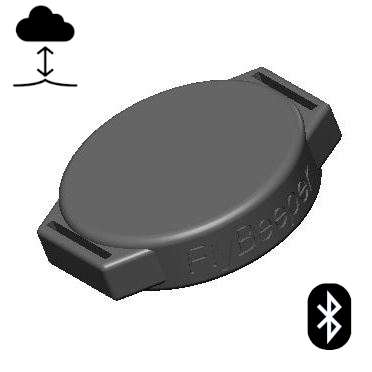
Manual
Control
FlyBeeper Baro (round enclosure). There is one button, and it does two things:
- One press wakes the device and makes it advertise frequently for a while, so your phone finds it in a second instead of waiting for the next beacon. The same press brings it back from storage mode.
- A double press with a 1–2 second pause puts it into deep sleep: advertising stops, the device cannot be connected to, and it draws almost nothing. This is the mode for transport and long storage; one press brings it back.
FlyBeeper Pressure Sensor (FBPS1, the predecessor). It has no button at all: the device is ready to connect as soon as the battery is in, and a reset is done by briefly removing the battery. Everything else — the operating modes, the pressure stream, firmware updates — is identical on both devices.
Nothing else controls the device: it has no screen, no LED and no sound — your flight app does all of that.
Operating Modes
The device operates in two modes. Immediately after installing the battery, the device enters Bluetooth connection standby mode. Every 5 seconds, the device broadcasts an advertising packet, allowing it to be detected for connection initiation. During intervals between advertising packets, the device sleeps. Once the device receives a connection request, periodic battery level measurement is activated. Connection does not require a pairing procedure. After establishing a connection, the battery level can be read, and subscription to changes in atmospheric pressure can be made. In the latter case, periodic reading of data from the barometric sensor is activated at a frequency of 40 times per second. The data is filtered, smoothed, and sent to the subscriber 10 times per second. During intervals, the device sleeps. Upon disconnecting the Bluetooth connection, the device returns to the standby mode with periodic broadcasting of advertising packets.
Configuration
You can test the device through the graphical interface. You need device with Bluetooth, such as a smartphone, laptop, or computer with a Bluetooth module. Press Connect and select FBPS from the list (the four characters after the dot come from the device ID). Keep the devices as close to each other as possible.
At the current point, the device does not have accessible settings, but new firmware updates will include the ability to change the sensor polling frequency and data transmission frequency.
List of Flight Programs with Direct Support
- xcTrack v.0.9.11.10+
- SeeYou Navigator v.3.0.6+
- LK8000 v.7.4.19+
- Flyskyhy v.8.2+
- FlyMe
- TheFlightVario XC 2.38+
- maps.flybeeper.com
Soon:
- Flygaggle
Communication Protocol Description
This section is intended more for developers than for regular users.
The device operates using the BLE protocol without pairing and authorization. Changes to each parameter are available via subscription (descriptor 0x2902). All non-standard parameters have 128-bit UUIDs, descriptor 0x2901 with a textual parameter name, and descriptor 0x2904 with a description of the format, exponent, and unit of measurement. For convenience, their values are listed in the tables below.
Characteristics UUID for service 0x181A ESS
| Name | UUID | Size | Exponent | Unit |
|---|---|---|---|---|
| Temperature | 0x2a6e | INT16 | -2 | Celcius |
| Pressure | 0x2a6d | UINT32 | -1 | Pascal |
Characteristics UUID for service 0x180F BAS
| Name | UUID | Size | Exponent | Unit |
|---|---|---|---|---|
| Battery level | 0x2a19 | UINT8 | 0 | Percent |
| Battery voltage | b0c889e8-16d2-45ef-b615-387f6bca2370 | INT16 | -3 | Volt |
Characteristics UUID for service 0x180A DevInfo
| Name | UUID | Size | Value |
|---|---|---|---|
| Model Number | 0x2A24 | STRING | FBPS |
| Manufacturer Name | 0x2A29 | STRING | FlyBeeper |
| Firmware Revision | 0x2A26 | STRING | 0.01 |